For the first project in this book, I use an inquiry form. It shows whether the site can accept valid data, explain errors and let the user try again. You can test this example locally before connecting paid services.
Write a brief before building the first screen
In the brief, record who uses the page, what they must do, and what counts as success. For our training site, a person enters name, email, and message. After sending, they get explicit confirmation. On error, entered data is saved.
The project boundary is also pre-recorded: the server runs on this computer and returns a training response. It does not save real requests, send emails, or connect CRM. Connecting these features requires separate implementation and testing.
Discuss website idea and create a brief with Codex
Appearance can be set by references and project rules. For our example, a light background, one form card, and one main accent were chosen. This is a custom training design. The design skill was not installed; no comparison of design tools was done on this example.
You can choose a design before implementation in the free Kombai gallery: forms and Hero sections. You do not need a Kombai account or subscription to view a reference and pass it to Codex.
Open the gallery, choose a page or an individual element, open its card and view Live preview. Copy the card link or use the Use in other agents button to copy the prompt. Give it to Codex with your task. Detailed instructions and limitations.
For your chosen reference, paste into Codex:
Find the project and task materials. Read the project instructions and my materials.
Use this design as a reference: [Kombai card or Live preview link].

My task: build my own version of the sample page with an inquiry form.
Content and functions: name, email, message, an error and a local sample confirmation.

Take the link from my message; if it is missing, ask me to choose a reference. Find the other information in the project and ask about anything missing.
Open the reference and study the composition, colors, typography, spacing, images and element behavior. Adapt the design to my task and project stack. Keep its character and replace demonstration text and data with mine. If HTML is available from Live preview, study it and use suitable parts as a starting point. If the source is unavailable, say so and implement the design using the available reference.
Work in a separate practice copy and preserve field validation and retry after an error. This is a new adaptation; the book’s earlier test results do not apply to it.
Check desktop and mobile versions, run it locally and show the result. Ask about missing facts concerning my product; do not invent them.
All form states
Start with a blank screen, then check each required field. The error message should explain the next step. "Error 400" is useful for the developer in the log, but the visitor needs a hint about the specific field.
Do not limit yourself to browser checks. The request can be sent directly to the server, bypassing the interface. Therefore, the training server also rejects missing required data and invalid email. Email validation in the example is simplified; it does not prove the address exists.
During submission, the button is disabled. This helps prevent repeated clicks in the current interface but does not provide server-side protection against duplicate operations. Separate mechanisms are needed for payments and other consequential actions, as discussed in the integrations chapter.
How to create an application form using Codex
This prompt is based on the completed walkthrough. The exact prompt has not yet been tested in a separate new task.
Repeat the book’s sample project
The archive "Training site - application form" contains index.html, server.py, instructions and test results. It requires Python 3. Run it from a separate practice folder:
python3 server.py
If Python is available via launcher in Windows, the corresponding command:
py -3 server.py
The Windows command assumes that the Python launcher is installed; it has not been tested here. Open in browser http://127.0.0.1:8767/. If the port is busy, do not stop unknown programs: change the port number in the training server and open a new address.
Enter synthetic data. For an error, enable "Simulate server error," submit the form, and check all fields are saved. Then disable the toggle and resubmit. The server should confirm success. To stop, return to the terminal and press Ctrl+C.
List of completed checks:
| Check | Actual result |
|---|---|
| Empty name | Submission rejected, hint shown |
| Invalid email | Submission rejected, hint shown |
| Empty message | Submission rejected, hint shown |
| HTTP 503 training response | Fields saved, button available again |
| Retry after error | Success, fields cleared |
| Width 390 pixels | Elements are visible, document width equals screen width |
| Direct Query Without Fields | HTTP 400 |
| Direct request with incorrect email | HTTP 400 |
| Direct query in error mode | HTTP 503 |
| Direct Correct Query | HTTP 200 with confirmation |
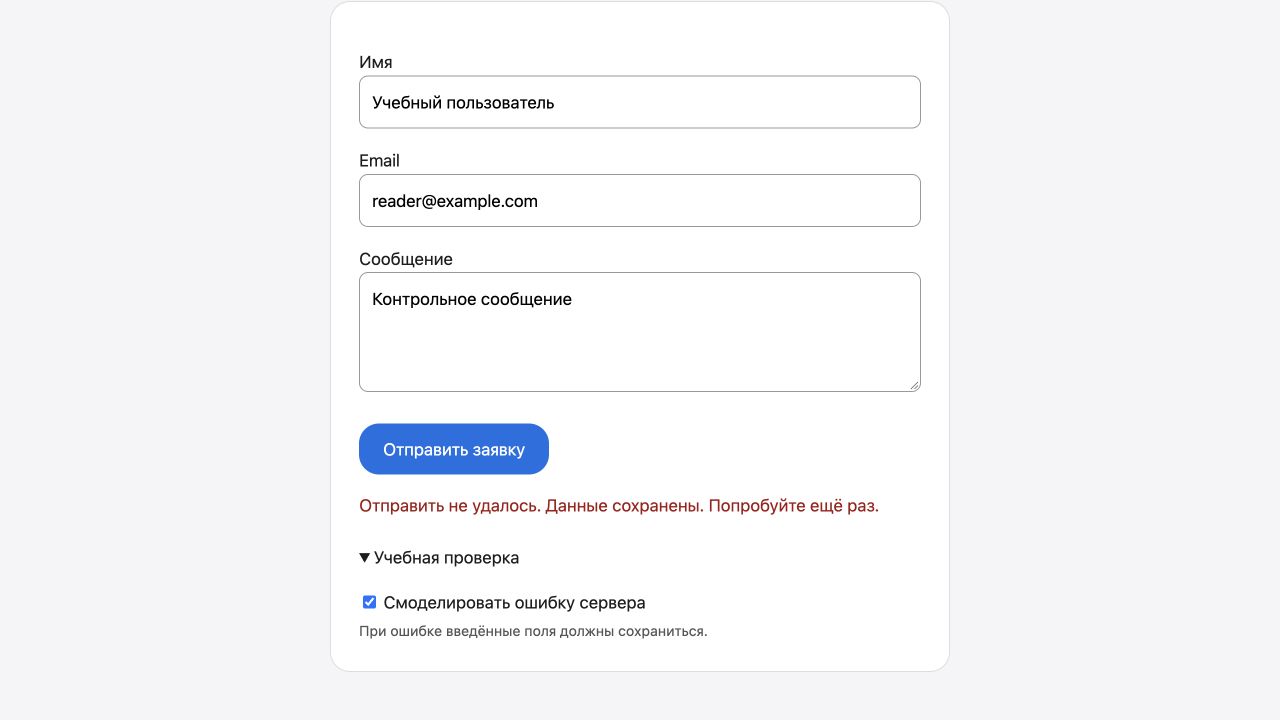
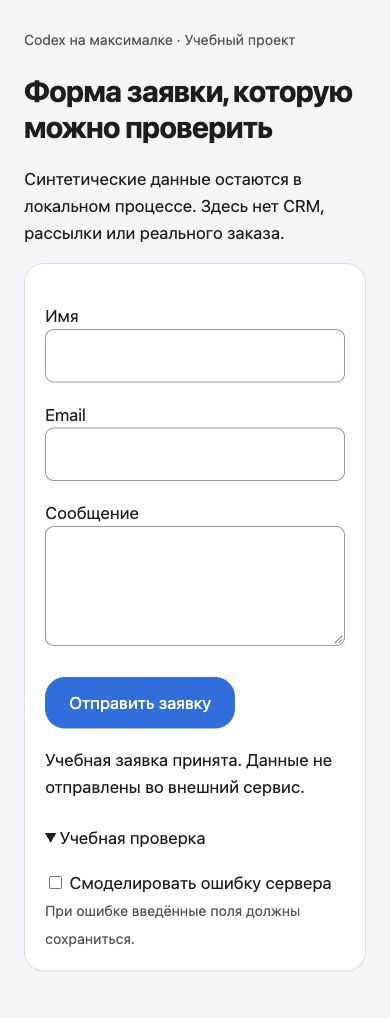
These are actual screenshots of the local example. The narrow layout was tested by resizing the browser; a physical phone was not used. Matching the viewport width does not establish full accessibility.
What to add before the actual launch
Define request storage location, retention period, access rights, and notification recipient. Connect the chosen service via the server side. Verify actual request arrival at the recipient and behavior if the service is unavailable.
The sample server is not ready for public use: it lacks storage, spam protection, authorization and comprehensive input validation. Do not publish it as a ready system for client data intake.
Hosting, domain, test publication, and launching a live site are covered in chapter 11. Before that stage, save the brief, project version, and check log. Then when connecting an external system, it will be clear what behavior already worked locally.
Online stores, user accounts and SaaS
For multipage site, first make a map of pages and transitions. For store, add product, quantity, cart, order status, and payment. Price and availability must be server-checked: browser value can be changed.
For a personal account, check data of two users. SaaS, application as a service, adds tariff and service rules. Creating a nice screen does not confirm paid access issuance.
Agree on the concept and website pages
