Before you start. A computer, your own business details and access to Codex or Work. A simple HTML site can be previewed in a browser without image generation. A domain or paid hosting is only needed if you choose that publishing path; agree on costs before purchase. All required steps are on this page. Reading this path is free without a Bible account. Your ChatGPT/Codex access and usage limits are separate; a Bible subscription does not include third-party AI plans, credits or API fees.
Create one page for a service, specialist or small business, from the idea and design to a working contact action and your own web address.
Paste the prompts in order into your Codex or Work project chat. The assistant finds available materials, creates files, starts previews and runs checks. You explain your business, choose an option and confirm sign-in, access or purchases where genuinely required.
Work with your own project materials. Describe the project once and Codex will save decisions for the following steps. Use your own names, prices, contact details and photographs.
If Codex is not set up, start with getting started with Codex. For separate service pages, use the business website plan. For a cart and orders, use the online store plan.
Step 1. How to open a separate project in Codex
Start with a short message: “I need a website for my project.” Codex checks the open project. If no website exists, it prepares a separate folder and shows it in the app. Without file access, it asks you to attach only the necessary folder.
You do not need to create documents, install an editor or find commands beforehand. Do not rebuild an existing website: the assistant reads its sources and prepares a working copy first.
Stage result: your project is open and you know where the website and decisions will be saved.
I need a landing page for my business. Find its project in the available
folders and materials attached to this chat. If none exists, prepare
a separate working folder and show it. If file access is unavailable,
explain the one necessary connection step. Do not use a shared folder
of personal documents or change other projects.
Save the goal and approved decisions so we can continue in a new chat.
For an existing website, read it and prepare a working copy first.
Do not build the page or publish yet.
Step 2. How to discuss the website idea and audience
Before design, establish what you offer and why somebody should contact you. Codex reads available information first, then asks only missing questions in small groups.
Useful questions include what the project offers, who it serves, which facts and materials are available and what the visitor should do. Choose one main action, such as viewing work or sending an enquiry. Add accounts or payments when the task requires them.
Review a short concept: audience, offer, main action, confirmed facts and first-version scope. An unknown price stays a question, not a fabricated number.
Read available information about my business and previous project decisions.
Help define the website concept without coding yet. Ask only what is missing:
audience, offer, location, contact action, evidence, materials, budget and
update process. Ask a few questions at a time and explain options simply.
Suggest one main action and a short offer. Separate facts from assumptions.
Explain what version one does not need. Choose a simple build approach:
text, photos and a call usually need ready-made files without a database.
Keep an existing project's approach unless there is a reason to change it.
Show the concept and save my choice.
Continue when: the concept describes your business rather than a generic company, and you understand what the visitor will see and do.
Step 3. How to choose a landing page structure
Codex proposes sections for the concept. Not every website needs the same cards and testimonials. Each section answers a visitor's question.
The example below uses the fictional training workshop “Wheel.” For your own site, ask Codex to prepare questions based on your brief.
| Wheel visitor's question | What we show |
|---|---|
| Do you offer what I need? | Service, area and a call button on the first screen |
| What work and pricing terms? | Confirmed service list and pricing explanation |
| Is this a real workshop? | Genuine photos and information about the business |
| How do I book and get there? | Booking process, address, hours and contact |
Without genuine reviews or photos, Codex proposes removing a section or asks for materials. Invented cases are not necessary for a complete page.
Use our approved concept to propose the order of sections on one page.
For each, show the visitor question, short answer and required material.
Make the main action visible near the top and easy to find later.
Remove repetition and unhelpful sections. Do not invent missing testimonials,
numbers or case studies. Explain whether one landing page fits this task.
Show the structure without code and save the approved order in the project.
Continue when: each section helps the visitor and the page has not grown into several unrelated tasks.
Step 4. How to prepare texts and images
Codex finds available photos, the logo and information. It asks about missing material or proposes alternatives. You confirm facts, rather than manually sorting files.
The first screen should explain your offer. Base its headline on real project information. Name the button action directly: “View work,” “Book” or “Send an inquiry,” according to the site’s purpose.
AI can create an illustration, but a generated workshop must not be presented as yours. For a series, use the consistent image plan. Approve one sample and its cost before the rest.
Find confirmed business information, the logo and permitted photos in our
project. Write short copy for the selected sections, button labels and
contact terms. Do not invent prices, contacts, testimonials or advantages.
Ask separately about missing facts. Prepare working image copies yourself,
preserve originals and sources, and check usage rights.
Suggest a substitute if a suitable photo is missing. For generation, first
show the idea for one image and agree on cost and quantity. Do not replace
real premises with an invented location. Show copy and materials for
approval and save what we choose.
Continue when: the content explains the service even without a layout. No empty promises or unconfirmed facts remain.
Step 5. How to choose design and tools
Share a website link or screenshot and explain what you like, or ask Codex to find examples. Awwwards and Dribbble are useful reference sources. Another page helps choose composition, not copy its brand or text.
You can choose a design before implementation in the free Kombai gallery: landing pages and Hero sections. You do not need a Kombai account or subscription to browse and send a reference to Codex.
Open the gallery, choose a page or an individual element, open its card and view Live preview. Copy the card link or use the Use in other agents button to copy its prompt. Send it to Codex with your task. Detailed instructions and limitations.
Paste this into Codex for your chosen reference:
Find the project and task materials. Read the project instructions and my materials.
Use this design as a reference: [link to the Kombai card or Live preview].

My task: create a business card site or landing page for my business.
Content and functions: my offer, confirmed benefits, images and a contact method.

Take the link from my message; if none is provided, ask me to choose a reference. Find the other details in the project and ask about anything missing.
Open the reference and study its composition, colors, typography, spacing, images and element behavior. Adapt the design to my task and project stack. Keep its character and replace demo copy and data with mine. If HTML is available from Live preview, examine it and use suitable parts as a starting point. If the source is unavailable, say so and implement from the available reference.
Show one hero section for me to choose first; build the full site after we agree on the direction.
Check desktop and mobile layouts, run the project locally and show the result. Ask about missing product facts; do not invent them.
Ask questions to improve the result and suggest improvements.
For your project, compare a light layout using a real photo with a higher-contrast layout and a strong offer. Use identical content. Choose by readability and booking ease, not effect count.
| Helper | When useful | Ask Codex to |
|---|---|---|
| UI UX Pro Max | Unsure which colours, fonts and sizes work together | Select rules for the service and show one screen |
| Impeccable | An existing screen is hard to read or inconsistent | Find a specific issue, fix it and show before/after |
| Awesome DESIGN.md | Need to retain a style for future edits | Adapt an example into project-specific rules |
| GSAP Skills | Need a complex motion sequence | Implement one approved effect and test without it |
Do not install everything. Choose a direction first, then a necessary helper. The linked tool cards explain purpose and setup; Codex checks the current installation for its own environment.
Find the brand and references in available materials. Otherwise select three
suitable websites and show useful principles. Suggest two directions for
our service using identical copy and photos. Explain layout, fonts, colours,
mobile behaviour and the main contact. Do not copy another brand.
Decide whether one design helper is useful and explain its specific purpose.
Do not connect unnecessary tools. After I choose, save design rules for
the next stages.
For a selected helper, paste:
Connect our selected design helper to this project. Check whether it already
exists, then read official instructions, requirements and usage terms.
Show proposed changes and access scope. After necessary approval, perform
the available setup yourself. Apply it to one screen and show actual results.
If setup is unavailable, suggest how to complete the stage without it.
Do not change other projects or install the whole collection.
States and optional effects. Add these after the static version works. A button state and a gentle section entrance are often enough for a small business site. Contact details must be available immediately; text must stay visible with reduced motion. For a glass panel, check readability and a normal opaque alternative. Video must not require a purchase.
Continue when: one direction is chosen, the font supports your language and effects either help or have been left out.
Step 6. How to view prototype on computer and phone
Codex builds the first screen, starts a preview and provides a working link. Compare two options at identical widths. After selection, the assistant applies the same rules to the remaining sections.
The first screen makes the offer, audience and main action clear. The button is not hidden behind a photo and long text stays inside the screen.
Find our approved concept, copy, images and design rules. Build two
first-screen options with identical content if we have not compared them
already. Start the preview and open it in a browser yourself.
Show both at 390 and 1440 pixels wide and provide the exact address.
After I choose, build remaining sections in the same style.
Check wrapping, spacing, menu and main contact. Capture real screenshots.
Do not publish or recreate previously approved options.
localhost and 127.0.0.1 refer to the computer running the project. That address will not open on a phone by itself. Codex should offer safe device access or a tested hosted address. Playwright emulation shows a narrow screen but does not replace a physical phone.
Attach a screenshot and describe a specific issue: “The button does not fit on the phone; fix this section only.”
Read the attached screenshot and my landing page feedback. Find the cause.
Fix only the affected section, keeping other copy, design and working
contact actions. Compare the result with our approved rules.
Open at the same width, repeat the action and show before/after.
Continue when: a working page shows the offer and selected design at wide and narrow sizes.
Step 7. How to set up call, messenger, or form
Our example uses calls: simple booking does not require a lead database. If a messenger or existing booking service is better, Codex creates the correct link. Use confirmed recipient information.
A form needs real receiving, not just a nice success message. See the enquiry form guide. The assistant selects a suitable receiver and implements minimal fields, sending, success and failure.
 Codex Bible
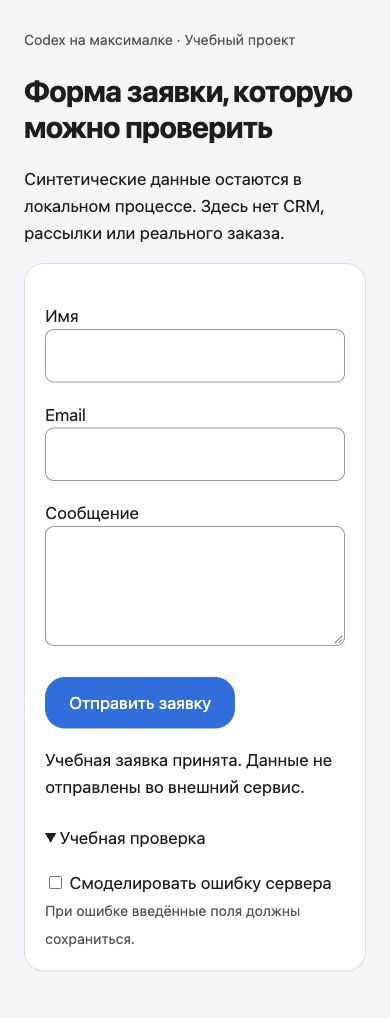
Find our approved contact method and confirmed recipient. Implement the
call, messenger, existing booking link or form yourself. Ask only for a
missing contact. For a form, agree on the receiver and minimal data.
Keep secrets server-side. Add sending, success after receipt and a clear
error. Agree on a safe test with fictional data, submit it and find the
recipient record. Repeat failure and double-click cases: no false success
or duplicate enquiry. Without receiver access, ask me to confirm the
specific test record. Do not place a real call or send messages without
approval.
Continue when: the call opens the right number, the link opens the intended recipient or the test form is received. For email, check the server's successful response separately from actual email delivery.
Step 8. How to check the landing page before publishing
Follow the customer's path: open, understand the service, find the terms, contact. Codex must use a browser. Reading code and giving an “80 out of 100” beauty score are not checks.
Playwright Test helps repeat actions. A new tool is unnecessary if the available browser already covers the scenario.
| Check | Ready when |
|---|---|
| First screen | Service, area and contact are clear without a long scroll |
| Narrow window | Headings fit; no horizontal scrolling |
| Menu | Correct section opens and the header does not hide its heading |
| Images | Load without jumping or covering text |
| Keyboard | Focus is visible; form works without a mouse |
| Motion | Buttons work during effects and without them |
| Contact | Correct recipient, clear failure and safe retry |
Use a real browser to walk through our landing page as a new visitor.
Check 390, 768 and 1440 pixels, long headings, 200% zoom, menu, images,
keyboard and main contact. Test clicks during animation and reduced motion.
If there is a form, repeat success, failure and double-click cases.
Check loading and unnecessary heavy resources. Fix contact blockers first,
then spacing and styling. Repeat corrected cases and show real screenshots.
Name unchecked items separately. Do not present emulation as a physical
phone test.
Continue when: no issue prevents reading or contact. An unavailable check remains a specific task, not an “everything works” mark.
Step 9. Where to host a website for free or paid
Hosting serves the website to visitors. A page with static content can use ready-made files. A form also needs a receiving service. A domain is a separate expense.
Codex first checks existing suitable hosting to avoid unnecessary accounts. Otherwise compare:
| Option | Purpose | Check |
|---|---|---|
| Cloudflare Pages | Simple page | Static requests are free; server functions and external services have separate terms. Pricing |
| Netlify | Convenient releases and suitable additional features | Free exists with credit limits; check forms, traffic and updates |
| Hostinger with Connector | Paid hosting managed through AI | Connector is free; hosting requires a suitable active plan; check total payment and renewal |
An existing project can stay on Vercel. Hobby is for personal non-commercial use, not a free business-hosting option. Hobby terms.
You choose hosting and budget; Codex runs commands. For Cloudflare, its official Wrangler tool can upload the release. Dashboard folder upload does not compile Pages Functions. The assistant checks the method in official instructions.
Find available connections and our site's requirements. If suitable hosting
already exists, compare it with one reasonable alternative. Otherwise compare
free static hosting and a suitable paid option using current official terms.
Consider forms, traffic, updates and availability to me.
List hosting, domain registration and renewal, enquiries and generated media
separately. Suggest a simple main option. After I choose, prepare public
output without secrets or internal material and configure available release
tools yourself. Purchases, new access and publication require necessary
approval.
Continue when: hosting, receiving and costs beyond the first period are clear. A video promotion is not a current price.
Step 10. How to publish the site and connect the domain
Codex first deploys the tested version at the service address and retests contact, then connects your domain. The service address may also be accessible to others; never upload private material.
Register through Cloudflare Registrar, Namecheap or your host. The assistant finds options and compares registration with renewal; you confirm owner details and payment. No purchase is needed for the initial prototype.
Codex Bible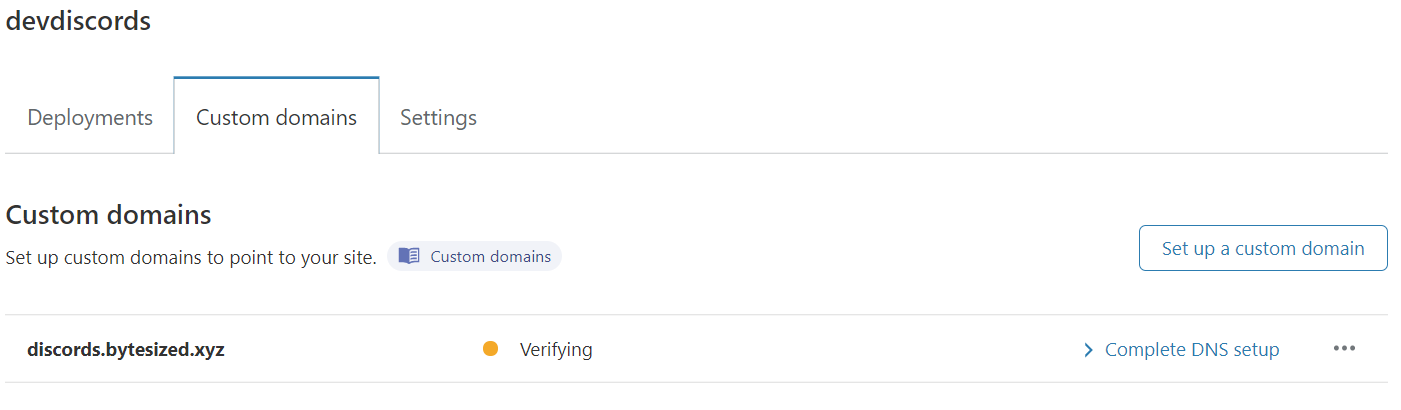
In Cloudflare: Workers & Pages → your project → Custom domains → Set up a domain. Codex performs available setup. A Pages apex domain needs Cloudflare nameservers; a subdomain can use external DNS. Preserve working email before changes. Connection instructions.
Find selected hosting, tested output and our agreed domain. After approval,
deploy the site, open the service URL and repeat the main contact.
Then connect the existing domain using official instructions.
Show required DNS changes and preserve current records, including email.
If no domain exists, suggest available names and registration and renewal
costs; stop before payment. Hand me required sign-in and confirmations,
and perform remaining setup through available tools.
Check HTTPS, main address, www, images and main action.
For a form, repeat a safe enquiry at the final domain and find the recipient
record. Save the working version and rollback method.
Continue when: the final HTTPS address opens without warnings and the contact action works. If the domain fails, Codex checks records, binding and certificate rather than simply suggesting a wait.
Step 11. How to set up SEO and track inquiries
The title should explain your offer and its audience rather than list dozens of keywords. Codex prepares the title, description, page address and search information.
Use the SEO guide and enquiry measurement. The search engine decides when to index. After submitting the sitemap, track indexing and page rankings.
A call-button click does not prove a conversation. An accepted form event differs from pressing Submit. Do not enable form-content recording automatically.
Find our final website address and confirmed information. Prepare title,
description, section headings, image descriptions, canonical URL, robots
and sitemap. Check production search access and absence of a competing
test copy. After approval, open available Google Search Console and Yandex
Webmaster accounts, help verify the site, install the issued verification
and submit the sitemap. Hand me required sign-in and agreement steps.
Set up and test the main-action event in approved analytics.
Distinguish clicks, accepted forms and delivered enquiries. Show actual
console responses without promising indexing dates or rankings.
Continue when: metadata uses the correct address and facts, and analytics measures the stated action rather than an invented outcome.
Step 12. How to update the site and restore working version
Our example changes opening hours. Codex finds the sources and updates only hours, preserving design, photos and booking. It saves the working version first, checks locally and prepares an approved release.
See the existing website update plan. When pausing, the assistant saves decisions immediately, not after publication. A new chat reads project state rather than rebuilding.
Find our landing page sources, current release and approved decisions.
Apply the edit I described to a working copy. Save the previous version
without secrets first. Keep other design and contact actions unchanged.
Show locally and repeat the main action. After approval, release the update
and check the changed page at its address. Explain how to restore the
previous version. Save decisions, checked items and the next step so
we can continue in a new chat.
For a new chat:
Continue our landing page. Find the project, read saved decisions and
compare them with source files and the current release. Briefly explain
what is ready and the next step. Do not rebuild or publish without approval.
Ask only what available material does not establish.
Ready when: you can update content, check it and return to the previous working version.
If Something Goes Wrong
| Symptom | Ask to check |
|---|---|
| Explanations but no files | Project access and actual saved output |
| Local link fails | Whether preview runs and its actual address |
| New section looks unrelated | Fonts, spacing and states against approved design |
| Text disappears on scroll | Motion and content access without it |
| Form success without a record | Server receipt and correct recipient |
| Old page after release | URL, selected project and deployed version |
What You Will Have
One approved page with real information, working contact and an update process. Browser output and a contact check prove the result, not an AI message saying “done”.
Next: improve search visibility and enquiries.
Prompt for the whole plan
Paste into Codex or Work where your materials are available. It starts with discussion, not immediate publication.
Help create a landing page for my business. Find available materials and
the project first, ask about the missing goal and conduct a short interview.
Suggest a concept, simple build, structure and two design directions.
Save approved decisions. Prepare copy, files and images yourself without
inventing facts. Show the first screen, then build the approved page and
contact method. Add tools for a specific need. Check browser behaviour,
narrow layout, keyboard, loading and contact.
Propose suitable hosting and domain, renewal and enquiry costs.
Perform available actions yourself, leaving me decisions, sign-in and
required confirmations. Publishing and purchases need approval.
After release, check the final address and contact. Save a working version,
an update method and instructions for continuing in a new chat.
