Install one Codex skill for a specific task and check its result on a practice file. This guide includes a form-validation exercise, an example result and checks for a skill that does not run. See how skills work for the current client options.
A Codex skill describes a repeatable workflow in SKILL.md and can include scripts, reference material and templates. See how skills are structured.
Use AGENTS.md for lasting project rules. Use MCP to connect external tools and data.
Step 1. What to check before installation
Define the task, e.g., form validation. Open the author’s repository and find the skill folder. Check which client it’s written for, which programs it calls, and what actions it can perform.
Use Prompt: Analyze tool before installation, to analyze the source and installation conditions. If instructions relate to Claude, separately verify commands, paths, and event handlers. Replacing the word Claude with Codex does not confirm compatibility.
Step 2. How to add one skill
For local installation, Codex documentation suggests $skill-installer; you can specify a repository with the skill. If the tool is distributed as a plugin, use the method described by the author. Skill installation.
Give the agent a source link; it will find the required skill folder there. In Codex CLI and the IDE extension, /skills opens the skill list and $ can specify a skill name. In the desktop app, Skills is in the sidebar. These methods are described in the skills documentation. Do not install several copies of one skill in different ways. If the skill does not appear, check the source and path; the documentation allows restarting Codex.
Step 3. Tutorial example: form field validation
Send Codex a link to the practice project. Ask to download, safely unpack into a separate folder, read README, and complete the exercise. The kit itself contains no personal data, does not install programs, and does not change your files. If the folder is still unavailable to Codex, connect only it upon its request.
The kit already includes check-demo-fields, a skill for checking required fields. Open the unpacked project in Codex and ask it to apply the skill to demo-form.json. The practice data lacks the message field: expect a report of this error while the original JSON remains unchanged. Check the agent actions for a read of SKILL.md; a final marker alone does not prove that the skill was used.
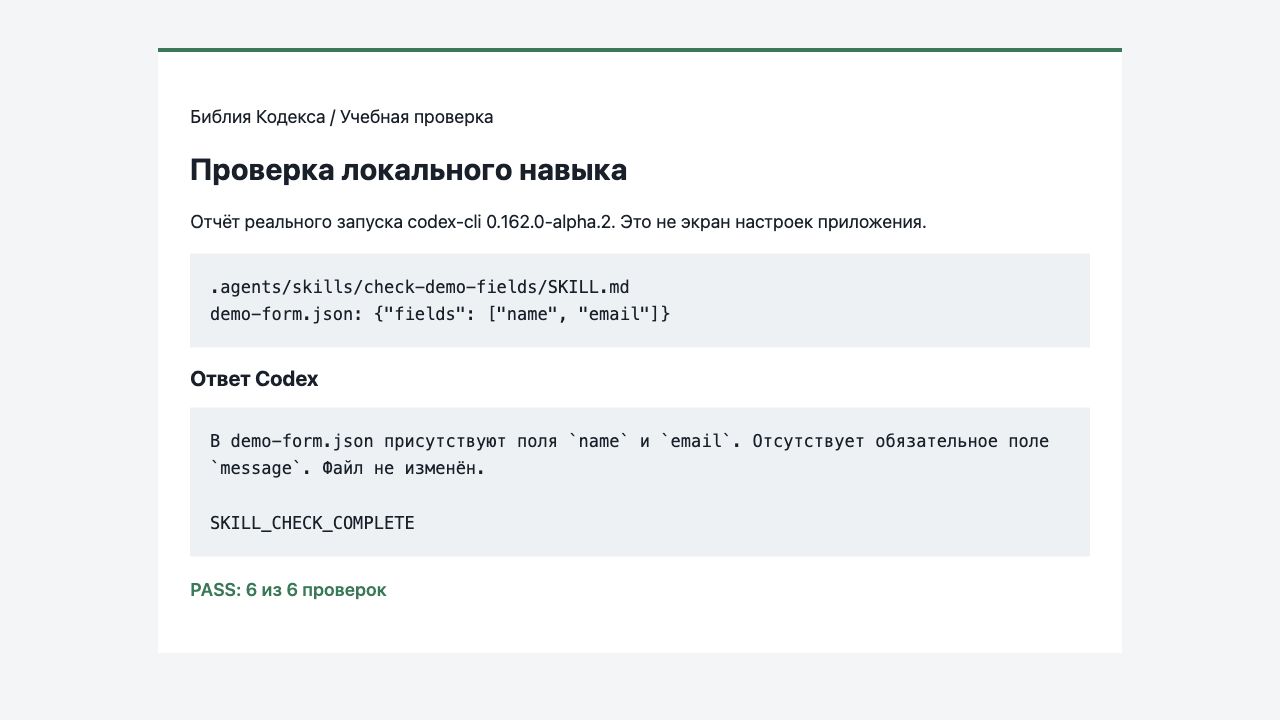
The image shows an earlier practice run in Codex CLI. It does not confirm a new run, an installer or another client and operating system.
Step 4. If the skill didn't work
Verify that the unpacked project folder is open, not its parent. The name in the request must match name in SKILL.md: check-demo-fields. Restart the session after adding files if the client did not update the skill list.
Do not confuse skill with MCP: here agent reads local instructions; no separate server needed.
Step 5. How to check another installed skill
Give a small task on the training project. See if the agent used relevant instructions, opened additional files, and got the expected result.
If a script requires a program not on the computer, installing the skill instructions does not install the missing program. First identify the missing dependency.
Test three cases in new chats: a task for the skill, a variant with a missing field and a task that does not need it. Check the instructions read and the result; a name or marker alone proves nothing. When combining a calculation with a letter, compare every number in the letter with the calculation.
Step 6. How to test skill beyond a single example
Separate two verification results. First, check execution: required data read, file created in the correct location, no forbidden actions performed. Then check quality: facts are correct, mandatory information not lost, result matches the task. File presence or a nice answer alone do not mean the work is done correctly.
For permanent rules, separate references and training examples suffice. If the answer depends on current prices, schedule, or tool version, date and current source are needed. Do not connect account or live service just for unchanging reference.
What you will have
The skill is installed in the selected folder and its behaviour can be checked with a small example.
Next: How to connect MCP to Codex: instructions and verification.
Prompt for Codex
Paste into your project chat:
Find the source data in the available project and conversation and fill in the bracketed fields yourself. Ask me about any unknown goals, preferences or sources; do not invent them.
Check the skill at [link] for [task]. Read SKILL.md and linked files, explain its purpose and required tools. Install the suitable skill in this project and run a small test using sample data. Show the result and check that unrelated tasks are unaffected.
