Our practice example has three fields: name, email and message. Before implementation, decide which are required and what the person should see after submitting.
Step 1. Prepare the task and a separate folder
Use Discuss a website idea and write a brief with Codex, then read the resulting brief. It should specify success and error conditions and the limits of the practice example.
Use the prompt at the end of this guide to ask Codex to create the form in a separate practice folder. To repeat the existing exercise, unpack the sample form and read its README.
You can choose a design before implementation in the free Kombai gallery: forms and contact pages. You do not need a Kombai account or subscription to view a reference and pass it to Codex.
Open the gallery, choose a page or an individual element, open its card and view Live preview. Copy the card link or use the Use in other agents button to copy the prompt. Give it to Codex with your task. Detailed instructions and limitations.
For your chosen reference, paste into Codex:
Find the project and task materials. Read the project instructions and my materials.
Use this design as a reference: [Kombai card or Live preview link].

My task: create a practice inquiry form.
Content and functions: name, email, message, submission, an error and a sample confirmation.

Take the link from my message; if it is missing, ask me to choose a reference. Find the other information in the project and ask about anything missing.
Open the reference and study the composition, colors, typography, spacing, images and element behavior. Adapt the design to my task and project stack. Keep its character and replace demonstration text and data with mine. If HTML is available from Live preview, study it and use suitable parts as a starting point. If the source is unavailable, say so and implement the design using the available reference.
Keep permanent field labels and preserve input after an error. Use practice data and a local server response; actual inquiry delivery is checked separately.
Check desktop and mobile versions, run it locally and show the result. Ask about missing facts concerning my product; do not invent them.
Step 2. What to check in the form
Use fictional data: name "Sample Reader", email reader@example.test, message "Sample enquiry." Do not enter real client data.
Follow checks in this order:
| Action | What should happen |
|---|---|
| Send empty form | "Enter name" will appear, focus will move to the name field |
Enter name and email wrong |
Shows “Enter a valid email” |
| Correct the email, leave the message empty. | “Add a message” will appear |
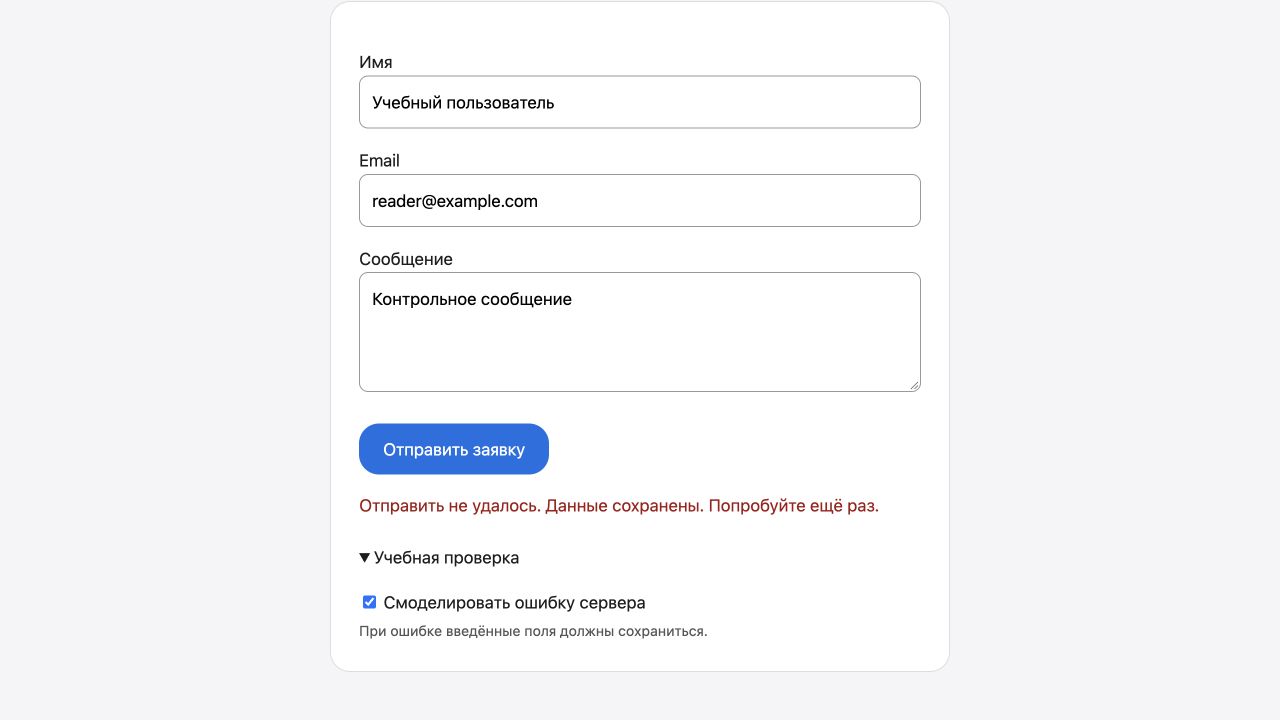
| Fill in the message, enable "Simulate server error," and submit. | An error appears; the name, email and message stay in the fields |
| Disable simulated error and resend | A message will appear confirming accepted sample request; fields clear; button enabled again. |
| Navigate between fields using Tab key | After the name, email opens, then the message |
Step 3. If form shows success but no submissions
Check where the request is saved and what the receiving service responds. The sample server has no real request storage. A working site requires separate integration and delivery check.
If the address does not open, ensure the server is running and the port matches the README. Do not stop unknown programs to free the port. To stop your sample server, press Ctrl+C in its terminal.
What you will have
The sample form validates fields, preserves text after an error and shows a clear submission result. Actual enquiry delivery is tested separately.
Next: How to measure website requests without fake analytics.
Prompt for Codex
Paste into your project chat:
Build and test a sample form with name, email and message fields. Include sending, success and error states; preserve entered text after an error and allow another attempt. Test empty fields, invalid email, keyboard navigation and a narrow screen. Use sample data and a local server response. Show the working example; actual enquiry delivery is a separate step.
