Step 1. Choose a Name
Check name availability immediately before purchase. The first year's price may differ from renewal. The site can remain at the hosting address if a custom domain is not yet needed.
Where to Buy. First select the domain extension and check which registrar supports it and your payment method. Cloudflare Registrar is one option, not a Cloudflare hosting requirement. Already purchased domains usually do not need repurchasing. Codex compares your needed options by official terms; the owner chooses the name and purchase.
Step 2. Register a domain or access one you already own
Codex helps find the chosen name at the registrar, checks registration, renewal, and final cost. Purchase and required personal data are confirmed by the owner in their account; passwords or payment details are not sent in the prompt. After purchase, Codex continues setup and saves management service and renewal term. Cloudflare registration guide: domain registration.
Step 3. Connect to Cloudflare Pages
Codex adds the domain to the appropriate project and configures records for official Cloudflare Pages instructions. For root domain, zone must be in Cloudflare account; for external subdomain, use CNAME to Pages project address. It first shows which records change and why, saves previous values, and doesn't affect mail.
DNS consists of records linking a name to the required service. Do not copy values from someone else's example: use your project's address. For Netlify and other hosting, take records from its domain settings.
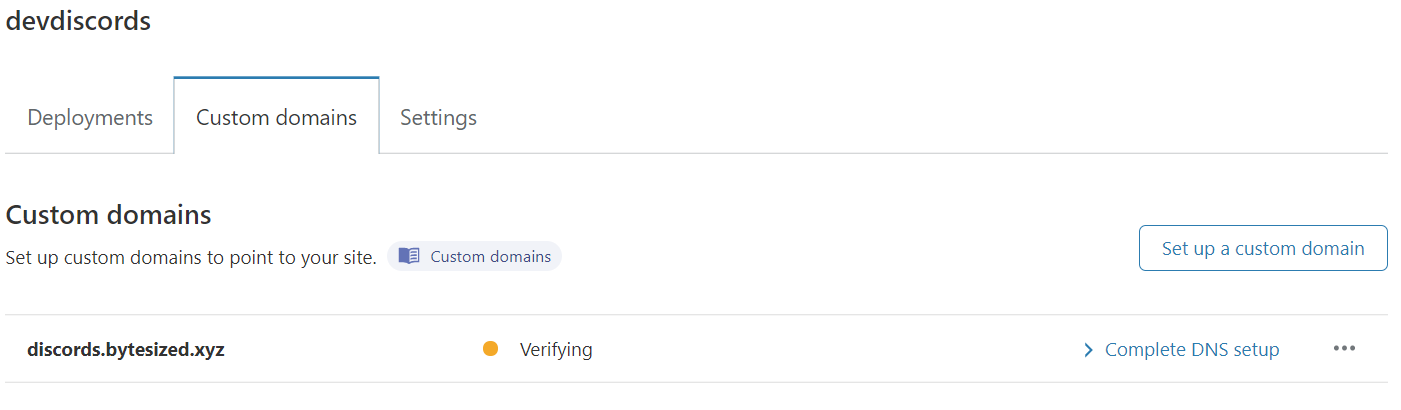
Step 4. Check result
Both address variants lead to the agreed site or www redirects to main. HTTPS works without warnings. Links inside the site use the final address. If the certificate is still being created, check domain status and suggested records in the dashboard, then retry verification.
What you will have
The domain opens the site; HTTPS, www and existing email are checked.
Next: Prepare the site for search and track inquiries.
Prompt for Codex
Paste into your project chat:
Find the source data in the available project and conversation and fill in the bracketed fields yourself. Ask me about any unknown goals, preferences or sources; do not invent them.
Connect [domain] to the published site. If no domain has been chosen, suggest clear names and registration options with current prices. Check existing records and email before changes. Configure the required records and check HTTPS, the main address and the www version.
